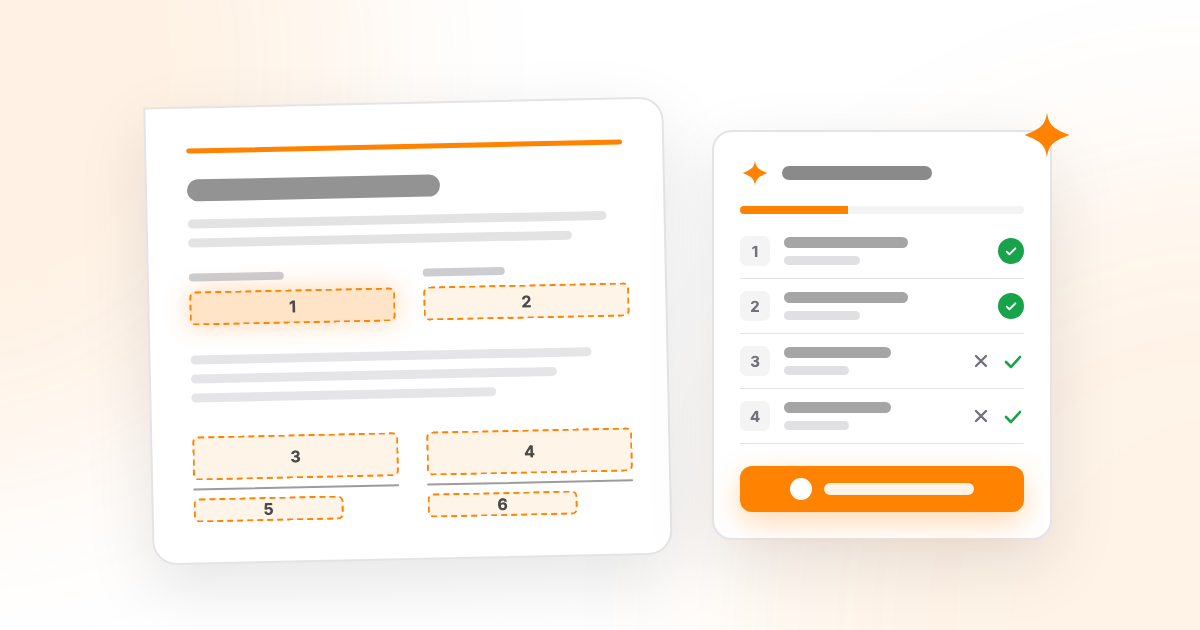
Suggest Fields is Propper Sign's AI-assisted field detection feature: it scans an uploaded PDF for signature, initial, date, name, text and choice fields, then lets you review the suggestions before adding them. Available since September 10, it turns field placement into a review step.
Automatic field detection helps with a familiar chore: finding each blank, drawing a field, sizing it and assigning it to a signer. On a long application, that can approach half an hour of repetitive setup.
Open the Prepare step and click Suggest Fields. Each suggestion appears as a numbered box on the page and a row in a list beside it. Review grouped findings, correct types, choose the signer and add the fields you want. You can undo a batch in one step. Nothing is added until you say so. Suggest Fields is included at no extra charge, with the same pay-per-completed-document pricing.
Here it is on a one-page services agreement: eight fields found, checked and placed without dragging a box. The analysis wait is shortened in this demo.
What fields does Suggest Fields look for?
It looks for the things a signer has to touch:
- Signatures and initials, including signature lines with a printed name or date underneath.
- Dates, with suggestions for both signing dates that fill themselves in and dates the signer enters, such as a date of birth.
- Names and text, including automatic printed-name fields and editable text fields for addresses.
- Checkboxes and choices, including Yes/No groups where the signer picks one answer and checkbox groups where several options may apply.
Each finding sits in a panel next to the document, grouped the way you think about a form: signatures first, then dates, then names and text, then choices. Hover a row to see its box light up on the page. Accept a row, accept a whole group, or click Add all remaining fields when the list looks right. If a finding is wrong, dismiss it; it stays in the list, struck through, in case you change your mind. If a type is wrong, change it from a dropdown before you accept.
How did it handle a long application?
A four-page membership application we used during development includes names, addresses, dates of birth, Yes/No questions, consent checkboxes and signatures.
Note
One development run proposed 82 fields, organized into 61 review items. A choice group is one review item containing several fields. Review found an extra line suggestion and a missed checkbox. This is one example, not an accuracy rate or a guarantee of complete detection.
You can dismiss an extra suggestion from the list and place a missed checkbox with the field palette. Check the full document for omissions as well as reviewing what the model found.
For context, assume 20 seconds to pick, place, resize and assign each field by hand. Eight fields on a services agreement take under three minutes; 80 fields take about 27 minutes unless you already have a template. These are setup estimates, not measured time savings.
How do you stay in control?
A wrong field that reaches a signer is worse than no field, so the feature is built around your decision.
- Nothing is added until you accept it. There is no setting that skips the review.
- You choose which signer gets the fields. The model does not assign recipients.
- Accepted suggestions are ordinary Propper Sign fields: move, resize or delete them, or undo a whole batch in one step.
- The field palette works exactly as before. If a document comes back with no suggestions, place the fields by hand as you always have.
- If your organization would rather not use AI features, we can switch Suggest Fields off for you on request.
What does Suggest Fields cost?
Nothing extra. An agreement prepared with Suggest Fields costs the same as one tagged by hand. You pay per completed document, with no separate AI credits to purchase.
Not on Propper yet? The Business plan is free for 14 days with no credit card, and includes unlimited users and full API access.
How does it handle your document?
The analysis runs on a temporary copy of your PDF using Google Gemini, with the response constrained to structured field types, coordinates and choice groups. Propper validates the response before showing suggestions. Google Cloud Platform is a listed subprocessor in our data processing agreement.
The analysis does not modify your uploaded PDF. Unaccepted suggestions stay outside the saved agreement. Suggest Fields runs on unlocked draft agreements you own, for PDFs up to 20 pages and 10 MiB.
The security page describes encryption, our SOC 2 Type II audit and HIPAA Ready posture, including a Business Associate Agreement (BAA) available on request.
Try it on your next agreement
- In Propper Sign, choose New Agreement and upload your PDF.
- Add your recipients and click Continue to reach the Prepare step.
- In the AI Assistance card above the field palette, click Suggest Fields.
- Look down the list. Fix a type, dismiss what you do not want, and confirm the signer.
- Click Add all remaining fields, then Continue to send.
On a phone the review opens as a sheet from the bottom of the screen, so the same flow works on a mobile device.
If Suggest Fields misses something on a form your team sends every week, contact our team to describe what needs improvement.
Start your free trial and run Suggest Fields on the longest form you send, or book a demo and we will run it on one of yours.
Propper® is a registered trademark of PropperDocs, Inc.