Propper® now has a plugin for Claude Code and Cowork, and it has passed Anthropic’s plugin review. The open-source bundle gives your assistant 13 skills for preparing documents, sending agreements for signature, and checking what happens afterward.
You can start with a contract you already have: ask Claude to find unfilled blanks, compare a returned version, or pull out renewal dates. Connect your Propper account when you want to create drafts, place signature fields, send agreements, or check who still needs to sign.
What are Propper skills, and how do they work?
A skill is a reusable set of instructions that tells an AI assistant how to carry out a particular task. Propper skills describe the steps, the information to check, and the points where the assistant should stop for your decision.
The Model Context Protocol (MCP) lets an assistant call tools in another system with your permission. Propper’s MCP connection supplies the tools; the skills explain how to use them together. For example, preparing an agreement means checking the source document, collecting signer details, placing fields, and confirming the recipients before sending.
MCP support shipped in March. This release adds packaged instructions for those workflows, distributed as a plugin you can install in Claude Code or Cowork.
What can you do with the 13 skills?
The bundle covers five kinds of work:
- Check a document before it leaves your desk. Find blanks, inconsistent party names, missing exhibits, and date discrepancies. Compare two versions clause by clause, or extract renewal and notice dates with the source text.
- Prepare recurring documents. Generate documents from templates with Propper Gen, turn a document you keep rewriting into a reusable template, or start from the included agreement templates.
- Send for signature. Use Propper Sign to create a draft, add recipients, place signature and date fields, and route the agreement in parallel or in a specified order.
- Track agreements after sending. Check each recipient’s progress, identify outstanding agreements, and retrieve a completed document. Cancellation is a separate action that requires confirmation.
- Move or build a signing workflow. Audit a DocuSign® template export to see what carries over and what needs rebuilding, or get implementation guidance for embedded signing and webhooks in your own application.
Eleven task skills handle that work. Two shared skills provide the authentication, recipient-role, and confirmation instructions they use. The full skill catalog lists each one and a prompt to try.
What does that look like in practice?
Check a contract before sending it
Check this consulting agreement for blanks, inconsistent company names, missing exhibits, and date mistakes. Show me the page and exact text for each finding.
The signature-ready-check skill directs Claude to read the document and report findings with their locations. If some pages cannot be read, the instructions require it to say which ones. You get a list to work through before the document goes to a counterparty.
This checks document consistency and completeness. It does not decide whether the terms are fair, enforceable, or appropriate for your transaction.
Prepare an agreement with a specific signing order
Prepare this non-disclosure agreement for Jordan Lee at jordan@example.com, followed by Casey Morgan at casey@example.com. Add signature and date fields for both, and show me the draft before sending.
The send-for-signature skill guides Claude through creating a draft in Propper, adding the recipients in sequence, and placing their fields. Before the send, the instructions require a confirmation showing the agreement, documents, recipient names and email addresses, and signing order.
That gives you a concrete draft and recipient list to review before anyone receives an email.
Find out who still needs to sign
Show me the agreements still waiting on signatures. For each one, tell me who has signed and whose turn is next.
The track-agreements skill calls for checking agreement status and then each recipient’s progress. For sequential signing, it distinguishes a recipient whose turn has arrived from someone still waiting on an earlier signer.
The current MCP tools do not send reminders. You can use the status report to follow up yourself or manage reminders in the Propper app.
Do you need a Propper account to try the skills?
You can check a local document, compare versions, or extract dates without a Propper account. You can also audit a template export, use the starter pack as drafting material, and work through embedded-signing implementation guidance before connecting.
These tasks do not call Propper tools. Your chosen assistant still processes the files you give it under that assistant’s data-handling policies.
The starter pack contains nine templates, including mutual and unilateral non-disclosure agreements, a consulting agreement, a statement of work, and an employment offer letter. They are generic starting points for your counsel to review before use. Creating templates in Propper or sending agreements requires an account and the relevant access.
How do permissions and sending approvals work?
The plugin includes the configuration for https://mcp.propper.ai/mcp. The connection uses OAuth 2.0 with Proof Key for Code Exchange (PKCE): you sign in through your browser and approve access, without pasting credentials into the conversation.
Permissions are split by action. For example, sign:read covers reading agreements and signing status, sign:write covers creating and editing drafts, and sign:send covers sending and voiding agreements. Generation and preview tools have their own scopes. The scope reference lists the requirements.
The skills instruct the assistant to ask for explicit confirmation before sending, voiding, or deleting an agreement. That is part of the workflow instructions; keep your client’s tool approvals enabled and check the proposed action. The Propper security page covers the platform’s security and data-handling posture.
What does it cost?
The skills are free to download under the Apache 2.0 license. Your assistant’s subscription and usage charges are separate.
Connected agreement workflows use Propper’s application programming interface (API), included on Business plans. Business starts at $15 per month billed annually ($180 per year), with unlimited users and 240 completed documents per year. Documents sent through the API have the same completed-document pricing as those sent in the app. See current Propper pricing for monthly billing and additional document rates.
Propper Gen is priced separately from your Propper plan. Our team enables it on your account; talk to us to learn about pricing.
How do you install the Propper plugin?
You can install directly from the Propper repository. The steps below do not depend on the plugin appearing in your directory search.
Claude Code
Run these commands inside Claude Code:
/plugin marketplace add mypropper/skills
/plugin install propper@propper-marketplace
The plugin includes the skills and the Propper MCP server configuration. Use /mcp to check the connection and complete authentication when prompted. Anthropic’s plugin installation guide covers marketplace and installation settings.
Claude Cowork
Open Cowork, then Customize → Plugins. In Personal plugins, use + → Add marketplace, choose the repository option, and add https://github.com/mypropper/skills. Install Propper from that marketplace.
If your organization manages plugin access, follow the organization setup steps below. Anthropic’s guide to using plugins explains the personal and organization options.
How do you add Propper to your Claude organization?
On Claude Team or Enterprise, an Owner or Primary Owner can make Propper available to the organization. Enable Cowork and Skills first, then select the correct organization and open Organization settings → Plugins. Click Add plugins to open the source picker:
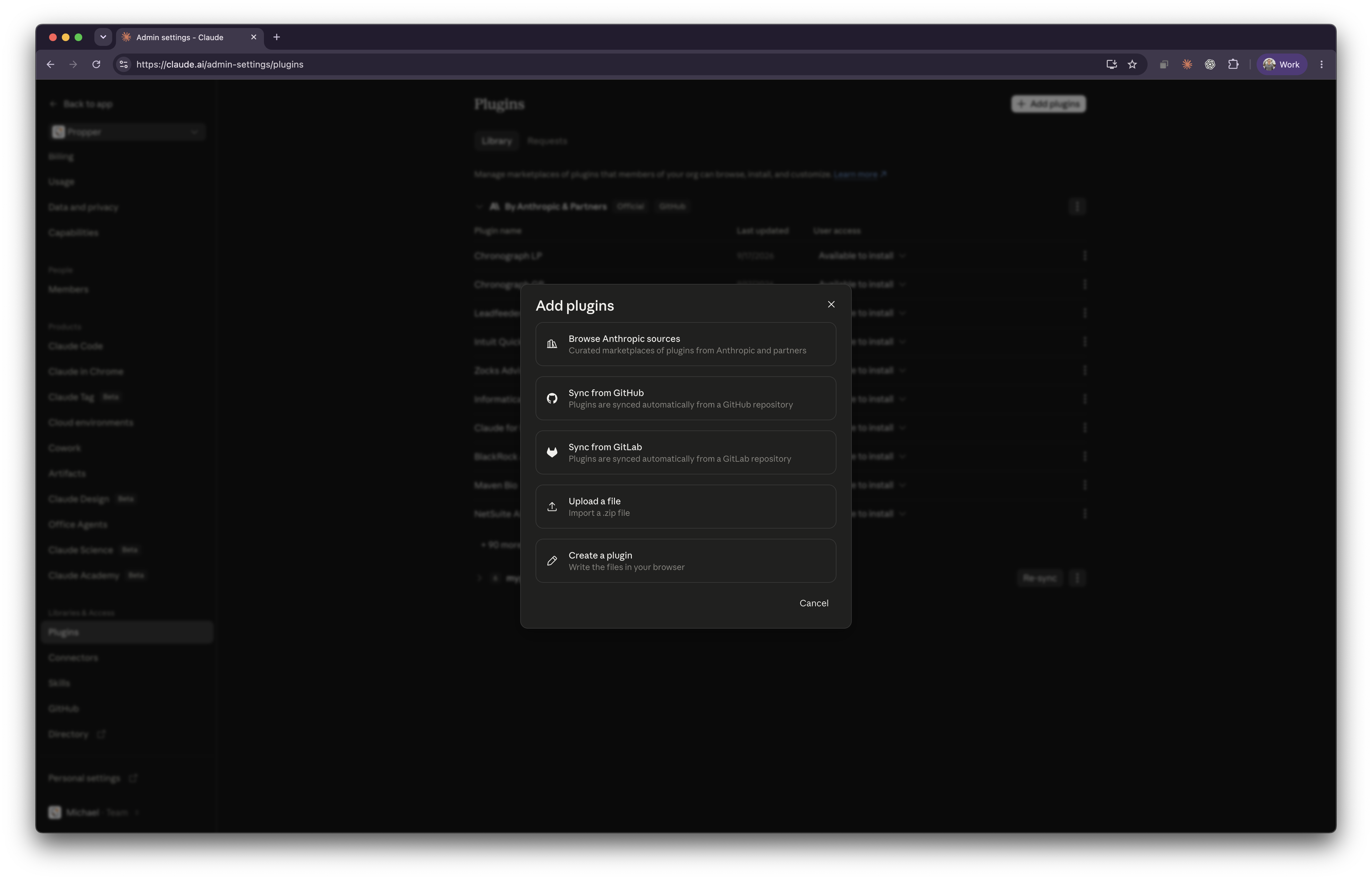
The organization-level Add plugins dialog. Select the screenshot to view it at full size.
You can upload Propper directly, without waiting for a directory listing:
-
Prepare the plugin ZIP. In a terminal with Git installed, run:
git clone --depth 1 https://github.com/mypropper/skills.git propper-skills
git -C propper-skills archive --format=zip --output=../propper-plugin.zip HEAD
This creates
propper-plugin.zipbeside the cloned folder, with.claude-plugin/plugin.json,.mcp.json, andskills/at the archive root. It includes the skills, templates, and connection configuration, without the Git history. -
Upload it to your organization. In the dialog above, choose Upload a file. Select Upload to a new marketplace, give it a name such as Propper tools, and upload
propper-plugin.zip. You can also add it to an existing manual marketplace. -
Choose member access. Find propper in the marketplace and use User access to make it available for members to install, or select Installed by default to install it for everyone.
-
Try it as a member. If installation is optional, browse plugins in Cowork and install propper from your organization’s marketplace. Complete Propper authentication when prompted before using connected agreement tools.
For a GitHub-managed rollout, Sync from GitHub requires your own private or internal marketplace repository with the Claude GitHub App installed. The public mypropper/skills repository cannot be connected directly through organization sync. See Anthropic’s organization plugin guide for repository setup and distribution settings. For manual uploads, upload a fresh ZIP to update the plugin.
Other coding agents
The skills are Markdown files and can also be installed through the skills command-line tool:
npx skills add mypropper/skills
That installs the instructions. To use connected Propper tools, also configure your agent’s MCP connection with https://mcp.propper.ai/mcp and authenticate. The repository setup guide includes examples for selecting specific skills and agents.
Start with one agreement
Install the plugin, open a document you are preparing to send, and ask Claude to check it for blanks and inconsistencies. Once you have worked through the findings, connect Propper and ask it to prepare the draft for your review.
Install the Propper skills and try that first check. You can begin before connecting an account.
Propper® is a registered trademark of PropperDocs, Inc. DocuSign® is a registered trademark of Docusign, Inc. Propper is not affiliated with or endorsed by Docusign, Inc. Claude, Claude Code, and Cowork are trademarks of Anthropic. Passing plugin review does not imply an endorsement of Propper by Anthropic.